
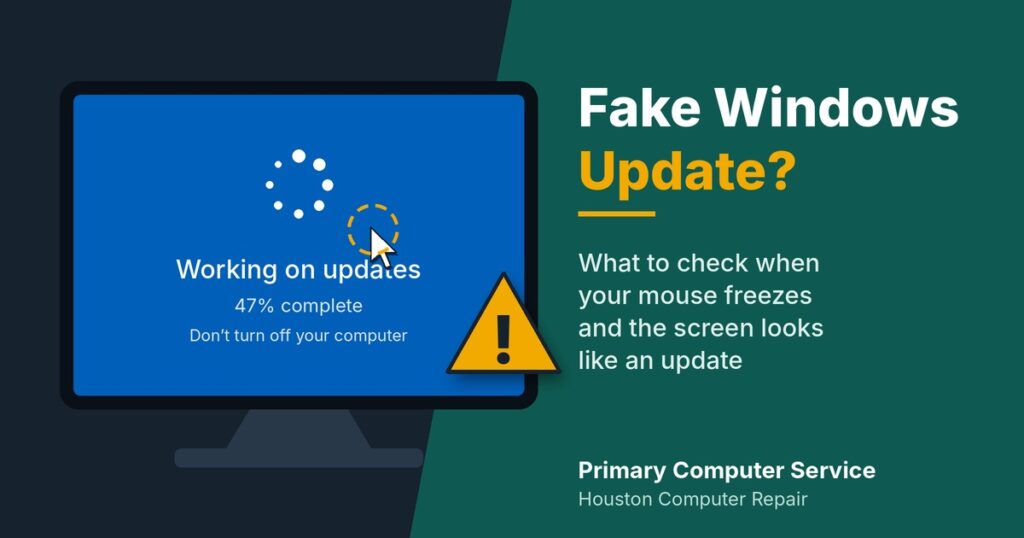
A few days ago, my computer displayed what looked like a fake Windows update screen, though I wasn’t sure at first. At a glance, everything looked normal. The message resembled a legitimate Windows update, but something felt off almost immediately.
The biggest warning sign was that my mouse stopped responding. The system seemed frozen, and I couldn’t interact with anything on the screen. Whenever a computer behaves unexpectedly during what appears to be a system update, it’s natural to wonder whether you’re dealing with a technical glitch, malware, or a fake update designed to scare users.
First Reactions Matter
When something unusual happens on your computer, resist the urge to click random buttons or repeatedly restart applications. Instead, take a step back and ask a few questions:
- Did this appear after visiting a website?
- Was a browser open at the time?
- Did I recently install software?
- Is the entire system frozen, or only the mouse?
Not every freeze is caused by malware. Hardware issues, driver problems, Windows updates, and software conflicts can all produce similar symptoms.
Checking Security Software
One of the first places I looked was Windows Security. Surprisingly, Microsoft Defender was not actively protecting the system because Malwarebytes was running its premium trial and had registered itself as the primary antivirus solution.
This is not necessarily a problem. Windows often disables Defender’s real-time protection when another antivirus product takes over. However, it can create confusion when you’re trying to perform a security check after a suspicious event.
Running Malware Scans
Whenever you suspect malicious activity, run multiple layers of protection:
- Update your antivirus definitions.
- Run a full system scan.
- Review quarantined items.
- Check recently installed programs.
- Examine browser extensions and startup applications.
A full scan may take hours depending on the size of your storage devices, but it’s worth the time if you’re concerned about potential malware.
Event Viewer Isn’t Always the Villain
While investigating, I found several error messages in Event Viewer. Among them were:
- Google Drive virtual disk driver errors
- Device Association Service errors related to printers and scanners
At first glance, these errors looked alarming. In reality, many Event Viewer entries are informational or relate to third-party applications rather than serious system problems.
One important lesson is not to assume that every red error icon indicates malware. Context matters.
Signs That Deserve Immediate Attention
If you experience any of the following, take the situation more seriously:
- Unknown software installs itself
- Browser settings change unexpectedly
- Security tools are disabled without explanation
- Passwords stop working
- Files become encrypted or inaccessible
- Remote-access software appears unexpectedly
These symptoms warrant a more thorough investigation.
Lessons Learned
The experience reminded me of an important truth: unusual behavior does not automatically mean infection. It could be a software conflict, a driver issue, a failed update, or malware. The key is to investigate methodically rather than panic.
My checklist now looks like this:
- Run a full antivirus scan
- Verify that security software is active
- Review recent software installations
- Check startup programs
- Investigate recurring Event Viewer errors
- Keep backups of important files
In the end, staying calm and collecting evidence is far more effective than making assumptions.
When your computer freezes during what looks like a fake Windows update, the goal isn’t to guess what happened.
Leave a Reply